- NEW -- The forward button is now hidden until you navigate back
- NEW -- Most add-ons are now compatible with new versions of Firefox by default
- NEW -- Anti-Aliasing for WebGL is now implemented (see bug 615976)
- NEW -- CSS3 3D-Transforms are now supported (see bug 505115)
- HTML5 -- New element for bi-directional text isolation, along with supporting CSS properties (see bugs 613149 and 662288)
- HTML5 -- Full Screen APIs allow you to build a web application that runs full screen (see the feature page)
- DEVELOPER -- We've added IndexedDB APIs to more closely match the specification
- DEVELOPER -- Inspect tool with content highlighting, includes new CSS Style Inspector
- FIXED -- Mac OS X only - after installing the latest Java release from Apple, Firefox may crash when closing a tab with a Java applet installed (700835)
- FIXED -- Some users may experience a crash when moving bookmarks (681795)
Showing posts with label Browser. Show all posts
Wednesday, January 15, 2020
Chromium-Based Microsof Edge Released
As announced previously, the long-awaited new Microsoft Edge Chromium-based browser has been released. For consumers, it will be installed in a future update to Windows 10, following a measured roll-out via Windows Update over the next several months. The Windows Update schedule for Windows 10 versions is available at Windows updates for Microsoft Edge | Microsoft Docs.
Having daily used the development version of Microsoft Edge since it was initially made available, the Chromium-based version has proved to be a definite improvement. Learn about the new features by following the "Learn More" links at Microsoft Edge Browser Features.
If you don't want to wait for Windows Update, you can download the new Edge browser today. It is available for Windows 10, Windows 8.1, Windows 8, Windows 7, macOS, iOS and Android from the download page at Download New Microsoft Edge Browser | Microsoft. Click the arrow to select the version for your device.
References:
Wednesday, August 07, 2013
The Danger of Saved Browser Passwords
As illustrated by the articles provided as examples in the references below, the hot topic in tech news today is the way the Google Chrome browser stores saved passwords. Any passwords saved on the browser are visibly accessible by anyone with access to the computer via chrome://settings/passwords.
Yes, the key is that someone has to have access to your computer in order to see the passwords. However, with light-weight laptops, netbooks and tablets, people are more likely than ever before to take their device even on excursions to the library, local coffee shop or diner. Leave the device unlocked and untended for minutes and even if the device is not missing, someone could have easily had access to your Chrome passwords in plain text.
What? You say your e-mail, bank and credit card company passwords aren't saved. Unless you use a very complex and unique password for those venues, how long do you think it will take to figure out those passwords?
Then, there is the shared family computer. Even if family members are set up with separate Standard User Accounts (see reference), how often do you walk away from the computer without logging off? It isn't that we don't trust our children, but we may not know all of their friends or they may think it a funny joke to go to your favorite web forum and post some silly nonsense.
Don't a lender or a borrower be also applies to your computer. In the event you do agree to let a friend or family member borrow your computer, either enable the guest account or create a Standard User Account for their use.
What about Firefox?
Correct. With Firefox, clicking Options > Security >Saved Passwords > Show Passwords reveals site passwords in plain text just like Chrome. The major difference between the two, however, is that Mozilla provides a simple mechanism to create a Master Password.After creating a master password, you will be prompted to enter it once when accessing your stored passwords. Granted, it will also be necessary to enter the master password when you agree to Firefox remembering a new password, removing a password but your security is certainly worth that effort.
Most importantly, the master password will be needed for each Firefox session for each time you show your passwords. So, if you do walk away from your computer, no one will be able to access your passwords.
Password Managers
Another option that is available for users of any browser, regardless of whether the password is visible or saved is a password manager program.With a password manager, it does not matter which browser you use. All passwords are secured. Rather than saving passwords to your computer, with a password manager, you only need to remember one password to access everywhere.
- 1Password (Licensed $49.99 USD)
- KeePass Password Safe (Free, open source)
- LastPass (Free and premium version available)
- RoboForm Password Manager (Free for 10 Logons, Licensed version available)
References
- Chrome's Password Security Strategy Is Insane
- Do you save passwords in Chrome? Maybe you should reconsider
- Google Chrome policy exposes user passwords on purpose: Here's how to prevent it
- MozillaZine Knowledge Base: Master password
- Using a Standard/Limited User Account
Tuesday, January 31, 2012
Mozilla Firefox 10 Released, Includes Security Update

Mozilla released Firefox 10 today, including a major update that will make both developers as well as Firefox users happy -- default compatibility of almost all add-ons.
Although default compatibility of add-ons will make a lot of people happy, this change is "prioritized as a P1 and part of achieving 'silent update'." as indicated in the feature tracking entry of "Add-ons Default to Compatible" in Mozilla Wiki.
Security Update
"Title: Frame scripts calling into untrusted objects bypass security checks
Impact: Critical
Announced: January 31, 2012
Products: Firefox, Thunderbird, SeaMonkey
Fixed in: Firefox 10.0, Thunderbird 10.0, SeaMonkey 2.7
Description: Mozilla security researcher moz_bug_r_a4 reported that frame scripts bypass XPConnect security checks when calling untrusted objects. This allows for cross-site scripting (XSS) attacks through web pages and Firefox extensions. The fix enables the Script Security Manager (SSM) to force security checks on all frame scripts."
What's New
The Release Notes include new and fixed features in version 10. The numerous Bug Fixes are in the link available in References.Known Issues
- Two-digit browser version numbers may cause a small number of website incompatibilities (see 690287)
- If you try to start Firefox using a locked profile, it will crash (see 573369)
- For some users, scrolling in the main GMail window will be slower than usual (see 579260)
- Some synaptic touch pads are unable to vertical scroll (see 622410)
- Firefox notifications may not work properly with Growl 1.3 or later (see 691662) Unresolved on v10 Resolved in v11
- Under certain conditions, scrolling and text input may be jerky (see 711900)
- Silverlight video may not play on some Macintosh hardware (see 715396)
The upgrade to Firefox 10 will be offered through the browser update mechanism. However, as the upgrade includes a critical security update as well as many bug fixes, it is recommended that the update be applied as soon as possible. To get the update now, select Help, About Firefox, Check for Updates.
If you do not use the English language version, Fully Localized Versions are available for download.
References
- Common questions after updating Firefox
- Mozilla Firefox Release Notes
- Security Advisory MFSA 2012-05
- Bug Fixes
Tuesday, August 30, 2011
Fraudulent *.google.com SSL Certificate
A fraudulent SSL certificate was issued for the .google.com domain name from Diginotar, a Dutch Certificate Authority on July 10,2011. The articles referenced below provide background information and a time-line about the events.
Of concern, is whether your browser is protected from spoofs, phishing attacks, or man-in-the-middle attacks from subdomains of google.com.
All supported editions of Windows Vista, Windows 7, Windows Server 2008, and Windows Server 2008 R2 use the Microsoft Certificate Trust List to validate the trust of a certification authority. Should you land on a website or attempt to install a program signed by the DigiNotar root certificate, you will receive an invalid certificate error.
A future update will be released to address this issue for all supported editions of Windows XP and Windows Server 2003.
Rather than waiting for the update, action can be taken now by following the instructions at Deleting the DigiNotar CA certificate.
Google Chrome is expected to be updated soon. Chrome 13 and newer have legitimate Google certificates, hard-coded.
No official word has been issued regarding an update for either the Safari or Opera browser.
F-Secure: Diginotar Hacked by Black.Spook and Iranian Hackers
PC World: Google One of Many Victims in SSL Certificate Hack
Of concern, is whether your browser is protected from spoofs, phishing attacks, or man-in-the-middle attacks from subdomains of google.com.
Internet Explorer
Microsoft issued Security Advisory (2607712): Fraudulent Digital Certificates Could Allow Spoofing, indicating that the precautionary step of removing the DigiNotar root certificate from the Microsoft Certificate Trust List.All supported editions of Windows Vista, Windows 7, Windows Server 2008, and Windows Server 2008 R2 use the Microsoft Certificate Trust List to validate the trust of a certification authority. Should you land on a website or attempt to install a program signed by the DigiNotar root certificate, you will receive an invalid certificate error.
A future update will be released to address this issue for all supported editions of Windows XP and Windows Server 2003.
Mozilla Firefox
The Mozilla Security Blog reported at Fraudulent *.google.com Certificate at Mozilla Security Blog that new versions of Firefox for desktop (3.6.21, 6.0.1, 7, 8, and 9) and mobile (6.0.1, 7, 8, and 9), Thunderbird (3.1.13, and 6.0.1) and SeaMonkey (2.3.2) will be released shortly that will revoke trust in the DigiNotar root.Rather than waiting for the update, action can be taken now by following the instructions at Deleting the DigiNotar CA certificate.
Other Browsers
As reported in the Google Online Security Blog at An update on attempted man-in-the-middle attacks, steps were taken to disable the DigiNotar certificate authority in Chrome. This was done while the investigations continues because it is not known if other fraudulent certificates were exist that have yet to be discovered.Google Chrome is expected to be updated soon. Chrome 13 and newer have legitimate Google certificates, hard-coded.
No official word has been issued regarding an update for either the Safari or Opera browser.
Background Articles
Computerworld: Hackers stole Google SSL certificate, Dutch firm admitsF-Secure: Diginotar Hacked by Black.Spook and Iranian Hackers
PC World: Google One of Many Victims in SSL Certificate Hack
Wednesday, March 23, 2011
Microsoft Security Advisory 2524375
Microsoft released Security Advisory 2524375 to address nine (9) fraudulent digital certificates issued by Comodo Group Inc.
This is not a Microsoft security vulnerability and Comodo has since revoked the digital certificates. However, one of the certificates potentially affects Windows Live ID users via login.live.com. These certificates may be used to spoof content, perform phishing attacks, or perform man-in-the-middle attacks against end users. Microsoft is not aware of any active attacks.
These Comodo certificates affect the following Web properties:
- login.live.com
- mail.google.com
- www.google.com
- login.yahoo.com (3 certificates)
- login.skype.com
- addons.mozilla.org
- "Global Trustee"
A mitigation update to help protect against inadvertent use of the fraudulent digital certificates. Customers should continue to utilize Internet Explorer's Security Status bar located on the right side of the address bar to verify that the site being visited is valid and secure.
The Microsoft mitigation is available for download from the Knowledge Base Article linked below and Windows Update.
References:
- MSRC: Microsoft Releases Security Advisory 2524375
- Knowledge Base Article: Microsoft Security Advisory: Fraudulent Digital Certificates could allow spoofing
- Tech Net Advisory: Microsoft Security Advisory (2524375): Fraudulent Digital Certificates Could Allow Spoofing
Wednesday, March 09, 2011
Mozilla Firefox 4 RC for Windows, Mac and Linux

Although Firefox 4 RC was delayed from the originally planned release, it is now available for download. As announced on the Mozilla Blog:
Mozilla Firefox 4 for Windows, Mac and Linux has exited the beta cycle and is now available as a release candidate in more than 70 languages. The millions of users testing Firefox 4 will be automatically updated to this version and will join our Mozilla QA team in validating the new features, enhanced performance and stability and HTML5 capabilities in Firefox 4. Testers are encouraged to check out the Web O’ Wonder in order to see the future of the Web with cutting edge demos that showcase the incredible online experiences developers can now create and users can experience. Developers can submit their own demos to the Mozilla Developer Network Demo Studio.
Before you rush to update, please note that Mozilla urges users to update graphics drivers for Firefox 4
"To prevent crashes, Mozilla created a list of graphics drivers that Firefox 4 reads; if a driver is on the "blocklist," the browser disables hardware acceleration."
{Snip}
"Jacob said that Windows users must have a "very recent driver" if their machine sports an Intel graphics card; version 257.21 or newer for Nvidia cards; and version 10.6 or newer for AMD's ATI-branded cards."
The complete blocklist is available in the Mozilla Wiki, linked below.
References:
- Blocklist: Blocklisting/Blocked Graphics Drivers - MozillaWiki
- Download Firefox 4 RC
- Learn more about the features
- Firefox RC Frequently Asked Questions
- Release Notes
- Change List
Friday, March 04, 2011
Internet Explorer 6 Countdown
Are you included among the 12 percent of people from around the world who are still using Internet Explorer 6? Although browser statistics of visitors to Security Garden indicate only 2.6 percent use IE 6, it is long past time for those visitors to update.I understand that not everyone has the latest and greatest computer. These are hard times and we all need to watch our budget. However, there have been numerous advances in IE since version 6 was introduced ten years ago. Forget the pretty-pretty new features. Most significant, from my point of view, are the enhanced security features in the newer versions of Internet Explorer.
Granted, IE9 is not compatible with Windows XP. However, you can still upgrade to IE8. IE8 has significant built-in security features, including SmartScreen, Cross Site Scripting (XSS) Filter, Click-jacking prevention, Data Execution Prevention, InPrivate Browsing, and InPrivate Filtering. (See Internet Explorer 8: Features/ for information about these security and safety features.) For those who would rather upgrade in stages, if need be, you can start with IE7 (download link below) and then follow up with IE8.
Although most of the Security Garden visitors are from the United States, United Kingdom and Canada, people from all around the world find their way here. If you are represented by the list of actual Security Garden visitors in the list of countries below, and are also included among the 2.66 percent of my visitors who use IE6, please update today!
Security Garden visitors from around the world:
| Australia | Barbados | Belgium |
Brazil | Brunei Darussalam | Bulgaria |
Canada | Chile | Croatia |
Czech Republic | Denmark | Dominican Republic |
Finland | France | Germany |
Greece | Hong Kong | Hungary |
India | Indonesia | Iraq |
Ireland | Italy | Japan |
Korea, Republic Of | Libyan Arab Jamahiriya | Lithuania |
Macedonia | Malaysia | Mexico |
Netherlands | New Zealand | Norway |
Pakistan | Peru | Philippines |
Poland | Puerto Rico | Romania |
Russian Federation | Serbia | Singapore |
South Africa | Spain | Sri Lanka |
Sweden | Switzerland | Taiwan |
United Kingdom | United States | Venezuela |
Vietnam |
Don't be one of these statistics:
References:
- Windows Internet Explorer 8: Compare versions
- Counting Down Internet Explorer 6 Usage Share
- IE6 Countdown
- Get Internet Explorer 7
- Internet Explorer 8: Worldwide sites
Clubhouse Tags: Clubhouse, Microsoft, Internet Explorer, IE6, IE7, IE8, IE9, Windows XP, Windows Vista, Windows 7, Information, Windows
Mozilla Firefox 3.6.15 Minor Update

Mozilla Firefox 3.6.15 was released to fixed an issue where some Java applets would fail to load in Firefox 3.6.14.
To manually check for the update, click Help and Check for Updates.
Reference:
Clubhouse Tags: Clubhouse, Security, Updates, Information
Remember - "A day without laughter is a day wasted."
May the wind sing to you and the sun rise in your heart...
Tuesday, March 01, 2011
Mozilla Firefox 3.6.14 Critical Security Update

Mozilla Firefox 3.6.14 has been released to fix stability issues and address the following security vulnerabilities:
Fixed in Firefox 3.6.14
- MFSA 2011-10 CSRF risk with plugins and 307 redirects
- MFSA 2011-09 Crash caused by corrupted JPEG image
- MFSA 2011-08 ParanoidFragmentSink allows javascript: URLs in chrome documents
- MFSA 2011-07 Memory corruption during text run construction (Windows)
- MFSA 2011-06 Use-after-free error using Web Workers
- MFSA 2011-05 Buffer overflow in JavaScript atom map
- MFSA 2011-04 Buffer overflow in JavaScript upvarMap
- MFSA 2011-03 Use-after-free error in JSON.stringify
- MFSA 2011-02 Recursive eval call causes confirm dialogs to evaluate to true
- MFSA 2011-01 Miscellaneous memory safety hazards (rv:1.9.2.14/ 1.9.1.17)
To manually check for the update, click Help and Check for Updates.
References:
Clubhouse Tags: Clubhouse, Security, Updates, Information
Remember - "A day without laughter is a day wasted."
May the wind sing to you and the sun rise in your heart...
Monday, February 21, 2011
Internet Explorer 9, Privacy and Security Enhancements
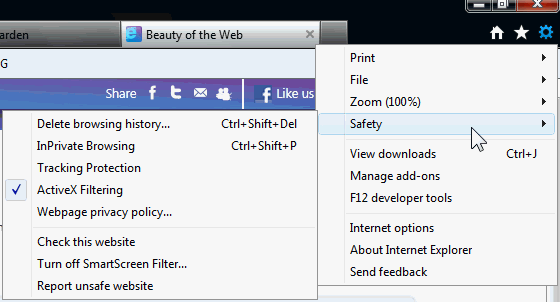
You can learn about the Beauty of the Web from many sources. I prefer to direct your attention to the security and privacy enhancements in IE9 RC. You can locate most of the security and privacy features via the Tools menu, represented by the gear icon.
Safety Menu

Tracking Protection Lists (TPLs)
Accessible via Tools > Safety
Tracking Protection in IE9 provides control of what data is shared as you navigate from one website to another. This is accomplished by adding Tracking Protection Lists (TPLs) to Internet Explorer. Anyone, and any organization, on the Web can create and publish Tracking Protection Lists.
The default installation of IE9 does not include TPLs. Rather, Microsoft has left the option available to add lists created by others. By installing a TPL, third party content, images, ads, and analytics are blocked for the sites included in the list. Tracking Protection is not on by default. Thus, after turning on Tracking Protection, it will remain on until you turn it off.
Although having TPLs enabled will block third-party content, this feature also includes the ability to include “OK to Call” addresses. This is to ensure you can access these sites even if one of their lists has the site identified as “Do Not Call.”
Before you start adding Tracking Protection Lists, make certain that you understand how they work. I consider Ed Bott's article, Privacy protection and IE9: who can you trust? a "must read" if you are going to use TPLs. If you get nothing else from the article, at least note:
Then see the following quote from further in the article:"So who can you trust? That question is especially important when you take into account the design of this feature in the IE9 RC. You can install multiple TPLs, and an Allow rule on any list trumps a Block rule on another list. So if you’re the owner of a big network of web properties, and you see a site visitor arrive using IE9, wouldn’t you want to helpfully offer that visitor the option to install a Tracking Protection List that whitelists all your domains? All in the interests of improved user experience, of course." {Emphasis added}
As Ed pointed out, "Remember: Allow rules trump Block rules." Be selective about the TPLs you install or you will be counter-acting the tracking you are attempting to block."As you can see from the table, TRUSTe’s current TPL represents advertisers, not consumers. TRUSTe’s TPL, unlike any of the others, consists exclusively of Allow rules for entire domains. Remember: Allow rules trump Block rules. So, if your domain is one of the nearly 4000 on the current version of the TRUSTe list, you’ve got a Get Out of Jail free card in IE9 with any user who installs the TRUSTe list."
The currently available TPLs are available from Internet Explorer 9 Tracking Protection Lists. From that site, click "Add TPL" for the desired list(s):
Active X Filtering
Accessible via Tools > Safety
ActiveX controls are small programs, or add-ons, that are used to provide multimedia effects, animation, collecting data, and other interactive features on web sites. Some websites require you to install ActiveX controls to see the site or perform certain tasks on it.
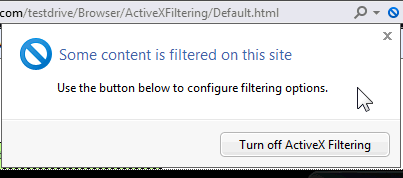
With Active X filtering turned on, you can choose which websites are allowed to run ActiveX controls. If you visit a site that has not been approved, the browser will not prompts to install or enable them. Instead, when you reach a site with Active X being filtered, as identified by the circle with a line through it, click the indicator and select the option to Turn off Active X filtering. Conversely, if you end up at a site with a lot of flash, rotating images, use Active X filtering to reverse the process:
SmartScreen Filter
Accessible via Tools > Safety
The features of the SmartScreen® continue to include Anti-Phishing, Application Reputation and Malvertising Protection. With additional information being collected, the features of Application Reputation have been improved.
Application Reputation:
With Application Reputation, the SmartScreen Filter in IE9 is collecting additional information than it did in IE8. The most significant change is that it will send information about the downloaded program, including a file identifier (a “hash”), results from installed antivirus tools, and the program’s digital certificate information.
The check of the file identifier by SmartScreen download reputation will result in IE9 removing warnings for commonly downloaded programs. As illustrated below, warnings will be provided in the download manager for programs that are higher risk. Conversely, there will not be a warning for a well known program.
(Click image to see full-size)
Anti-Phishing and Malvertising Protection:
Most people are familiar with the term "phishing", generally in the form of an e-mail that appears to be from a legitimate site (bank, credit card company, or online merchant). Instead of being linked to the legitimate website, the links in the e‑mail message are directed to a fraudulent website where personal information, such as an account number or password is requested. This information is then typically used for identity theft.
With SmartScreen activated in IE9, in the event you click a link in an e-mail that goes to a known phishing site or attempt to go to a website where a malicious advertisement has been reported as unsafe, IE9 will block the ad and provide a warning that the website is hosting malicious content. Although not fully appreciated in the partial screen copy from the demo sample provided by Microsoft, the complete background of page is a bright red.
Along with the warning, the address bar includes the security warning symbol next to the wording "Unsafe website". Clicking the symbol provides the following additional information:Suggested Sites
Accessible via Tools > File
If you use Suggested Sites, be aware that Internet Explorer 9 is collecting some additional data on images and videos that are included on the sites visited (including the URLs of the images or videos). The purpose of the additional information is to help determine which images and videos are popular and improve the Suggested Sites recommendations.
Additional details are available in the Internet Explorer 9 privacy statement.
User input by the many Beta testers had an influence on the Release Candidate. The changes that were made to the IE9 Release Candidate based on Beta feedback are discussed at the IEBlog in User Experiences – Listen, Learn, Refine.
If you are anxious to upgrade to the IE9 Release Candidate, be sure you have the required updates installed.
Required Updates for Windows Vista
- KB971512: Windows Graphics, Imaging, and XPS Library Updates
- KB2117917: Beta Platform Update Supplement
Required Updates for Windows 7
- KB2028551: Resolves Issues Printing XPS Containing Visual Brushes
- KB2028560: Performance Improvements for the Graphics Platform
- KB2120976: Addresses Streaming Issues with Media Foundation
Microsoft References:
Recommended Articles by Ed Bott:
- IE9 Release Candidate review: will Microsoft’s big browser bet pay off?
- IE9 FAQ: how to install, uninstall, and tweak the IE9 RC
- Internet Explorer 9 Tracking Protection: how it works
- Part 1 – IE9 and Tracking Protection: Microsoft disrupts the online ad business
- Part 2 – Privacy protection and IE9: who can you trust?
Clubhouse Tags: Clubhouse, Microsoft, Internet Explorer, IE9, Windows Vista, Windows 7, Information, Windows
Remember - "A day without laughter is a day wasted."
May the wind sing to you and the sun rise in your heart...
Thursday, February 03, 2011
Security Bulletin Advance Notification for February, 2011
On Tuesday, February 9, 2011, Microsoft is planning to release twelve (12) security bulletins addressing 22 issues in Microsoft Windows, Internet Explorer, Office, Visual Studio, and IIS. Three bulletins are rated Critical, the remaining nine are rated Important.
The scheduled updates will be addressing Security Advisory 2490606 (public vulnerability affecting Windows Graphics Rendering Engine) and Security Advisory 2488013 (public vulnerability affecting Internet Explorer).
Important Note: If you installed Microsoft Fix it Solutions for two either or both of the two Security Advisories, they need to be disabled prior to installing the updates. As noted in Microsoft Fix it Available for Security Advisory 2488013, it is particularly important that the Microsoft Fix it be disabled.
Disable: Microsoft Fix it 50593 (Security Advisory 2490606)
Disable: Microsoft Fix it 50592 (Security Advisory 2488013)
References:
- MSRC Blog: Advance Notification Service for February 2011 Security Bulletins
- TechNet: Advance Notification Service for the February 2011 Security Bulletin Released
- Microsoft Fix it: Vulnerability in Internet Explorer could allow remote code execution
- Microsoft Security Advisory (2488013)
- Microsoft Fix it: Vulnerability in Graphics Rendering Engine could allow remote code execution
- Microsoft Security Advisory (2490606)
Clubhouse Tags: Clubhouse, Microsoft, Windows, Security, Updates, Vulnerabilities, Information,
Thursday, January 27, 2011
Data Privacy
Data Privacy Day is "an international celebration of the dignity of the individual expressed through personal information."
There is no doubt that we have evolved into a digital society. Whether it is via a traditional laptop or desktop computer or a mobile device, we are seldom far from being connected to the Internet.
Computers surround our everyday lives. When we make a credit card purchase, the information is transmitted over the Internet. Computers are an integral part of the airline reservation services we use to schedule a family holiday. If we need to contact our local police or fire department, they access directions to our home via a computer.
Much of our personal information is stored on computers. The information contained in our medical, insurance, pharmacy, employment and school records, bank and credit reports, tax and government data provide not only a story of our life but also a key to our identity.
There is more to online privacy than personal records. Consider the following activities:
As any of the above online activities are conducted, information is stored on your computer. This information is potentially available for data collection and manipulation, resulting in targeted advertisements. Advertisements are a “necessary evil”. Maintaining websites is not cost free. Thus, the need for the subsidy provided website owners by advertisers. Although many free and licensed applications and browser add-ons have been created to block or remove what is commonly referred to as tracking cookies, other means of tracking website visits have evolved.
Particularly due to a year-long study by the Federal Trade Commission (FTC), a lot of attention has been devoted to online privacy. On December 1, 2010, the FTC released a preliminary report entitled "Protecting Consumer Privacy in an Era of Rapid Change". The one hundred twenty-two (122) page PDF file is available for download at http://www.ftc.gov/os/2010/12/101201privacyreport.pdf ). Briefly, the FTC report provides a broad framework centered on three concepts: privacy by design, simplified choice, and greater transparency.
Within days of the FTC report, the Microsoft Internet Explorer 9 team announced tracking protection for inclusion in the Internet Explorer 9 Release Candidate. Both privacy advocates and consumers alike will see this as a major step forward to providing additional online privacy.
IE9 and Privacy: Introducing Tracking Protection
With Tracking Protection in Internet Explorer 9 (IE9), you will have control of what data is shared as you navigate from one website to another. This is accomplished by adding Tracking Protection Lists (TPL) to Internet Explorer. Anyone, and any organization, on the Web can create and publish Tracking Protection Lists.
Although the default installation of IE9 will not include Tracking Protection lists (TPL), the option will be available to add lists created by others. In effect, the lists provide a “Do Not Call” indicator for external content, unless you visit those sites directly. The TPL will also include the ability to include “OK to Call” addresses. This is to ensure you can access these sites even if one of their lists has the site identified as “Do Not Call.” Tracking Protection is not on by default. Thus, after turning on Tracking Protection, it will remain on until you turn it off.
The process of change is not simple. Realize that it will be ongoing. As a postscript to the IE Blog article, IE9 and Privacy: Introducing Tracking Protection Dean Hachamovitch, Corporate Vice President, Internet Explorer, added:

Last week, Mozilla announced “Do Not Track”. The concept is to provide a way for people to opt-out of online behavioral advertising (OBA) by transmitting a Do Not Track HTTP header every time their data is requested from the Web. This header will notify the website that the visitor wants to opt-out of third-party tracking for behavioral advertising. When the feature is enabled, advertising networks will be told by Firefox that the user has asked to opt-out of behavioral advertising.
As indicated in the Mozilla announcement, the "initial proposal does not represent a complete solution" but rather is one step to see if the header approach can work. The goal is to provide a more nuanced, persistent tool for communicating privacy choices on the web. Do Not Track (DNT) is expected to be introduced in version 4.1.
More information is available in the MozillaWiki FAQ: Privacy/Jan2011 DoNotTrack FAQ
The Internet Explorer 9 tracking protection will provide a viable option for protecting your privacy. I expect that the other browsers will provide similar methods of providing tracking protection in future releases. In the meantime, there are other options available for protecting your privacy. In the following segments are instructions for restricting tracking cookies as well as examples of options and a few of the available browser extensions for managing DOM Storage and Flash Cookies. Also included are browser settings for private browsing sessions.
Cookies
There are considerations when blocking cookies. Keep in mind that not all cookies are tracking your every move. As a simple example, website logon cookies remember pages read. Also, note that cookies cannot be used to run code (run programs) or to deliver viruses to your computer.
Session Cookies are also useful. Some websites require session cookies to track your movements on the site. Without the session cookies, you would repeatedly be asked for the same information already provided. As an example, session cookies are used when shopping online to remember items placed in a shopping cart. Without the session cookies, the shopping basket would disappear before you reach the checkout. Session cookies are stored in memory not on the hard drive. They expire when the browser is closed.
Third-party Cookies are cookies that are set by one site, but can be read by another site. This enables advertisers that use third-party cookies to track your visits to the websites on which they advertise. With third-party cookies, your web surfing habits are logged, allowing advertisers to tailor advertisements to your interests.
What if you do not want to be tracked?
The Network Advertising Initiative (NAI) provides a system for opting out of popular ad networks. The Network Advertising Initiative tool identifies the member companies that have placed an advertising cookie on your computer. Using the NAI tool is simple. Merely choose the provided option to Select All member companies or check specific boxes that correspond to the company(s) from which you wish to opt out. After you click the Submit button, the tool will automatically replace the selected advertising cookie(s) and verify your opt-out status.
TrackBlocker is a Firefox extension provided by PrivacyChoice.org. The extension not only blocks cookie tracking by over 200 ad companies it also deletes Flash cookies from these companies.
Most web browsers have a feature in their settings that lets you disable cookies from third-party websites. Shown below are the instructions for the setting to block tracking cookies for the major web browsers.
DOM Storage
Although we generally associate the term cookie with data stored by websites we visit, DOM Storage does not store cookies per se. Rather, DOM storage is per-session or domain-specific data. It is easier to control how information stored in one window is visible to another with DOM Storage. (According to W3C, officially, the term is Web Storage but the common term is DOM for Document Object Model.)
DOM Storage is comprised of two primary parts, Session Storage and Local Storage. In Session Storage, any data input is stored for the duration of the session. Thus, if a new tab is opened, the data from the Session in the original tab is stored for the new tab. Conversely, Local Storage spans multiple windows and persists beyond the current session. Local Storage allows Web applications to store up to 10 MB of user data. This could include data stored offline for later reading.
Disable DOM Storage
It is easy to disable DOM storage cookies in both Internet Explorer and Firefox browsers by following the simple instructions below. It is important to note, however, that some sites (i.e., CNN) may not work correctly with DOM storage disabled.
Flash Cookies
Blocking all or just third-party cookies and clearing browser history does not remove another form of cookies -- Flash cookies. Flash cookies are also known as local shared objects (LSO) or Super Cookies. Because Flash cookies are not as well known as HTTP cookies, they provide the additional advantage for advertisers for tracking and providing targeted advertising. As a result, Flash cookies also jeopardize your online privacy. The same advantages of Flash cookies over HTTP cookies for advertisers are disadvantageous in maintaining privacy.
A partial list of Flash Cookie/LSO properties includes:
Considering the complexity of Flash Cookies, the question in your mind most likely is how to control or remove them from your computer. Below are few options for consideration.
Adobe provides an On-line Settings Manager, illustrated below, to configure Flash Player settings. To use the tool, you need to go to the Adobe Website Storage Settings panel to make the changes to the settings. Although the changes are made via the on-line manager, the settings are only stored on your computer. I have discovered that the Adobe On-line Settings Manager version has changed several times. As a result, it has been necessary after a Flash Player update to revisit the site to verify the settings.
For on-line game players, note that Flash cookies are used to save a game in progress. In that case, you will want to add an exception to the on-line game site.
The Taco plug-in is available for both Internet Explorer and Firefox. It helps manage and delete standard cookies as well as Flash and DOM Storage Cookies. The plug-in also lets you see who is trying to follow your online movements and helps you decline targeted ads from more than 100 ad networks.
Firefox users have the option of using the BetterPrivacy or Flashblock extension.
Flashblock blocks all Flash content from loading. It then leaves placeholders on the webpage. With that method, if you wish to view the Flash content, you can click to download and then view it.
The BetterPrivacy extension manages Flash Cookies by removing them on every browser exit. It also provides the capability of reviewing, protecting or deleting new Flash-cookies individually. If desired, the automatic functions can be disabled. BetterPrivacy also protects against the previously discussed DOM Storage.
Private Browsing
Private browsing options are available for occasions when you do not want to leave evidence of your browsing or search history. When surfing at an Internet Café or unsecured Wi-Fi location this feature is recommended to protect not only your privacy but also security should it be necessary to access a banking or similar secure site.
It is apparent that there is a long way to go toward online privacy before the tenants proposed in the FTA draft report are accomplished. Internet Explorer 9 is taking a step forward in design with tracking protection as is Mozilla Firefox. I anticipate that the other browsers will follow with something similar. A simplified choice and an easier method of changing the settings is needed. Beyond that, and more importantly, a clear understanding of the information advertisers are collecting is needed in order to make informed decisions about what information to allow or block.
There is no doubt that we have evolved into a digital society. Whether it is via a traditional laptop or desktop computer or a mobile device, we are seldom far from being connected to the Internet.
Computers surround our everyday lives. When we make a credit card purchase, the information is transmitted over the Internet. Computers are an integral part of the airline reservation services we use to schedule a family holiday. If we need to contact our local police or fire department, they access directions to our home via a computer.
Much of our personal information is stored on computers. The information contained in our medical, insurance, pharmacy, employment and school records, bank and credit reports, tax and government data provide not only a story of our life but also a key to our identity.
There is more to online privacy than personal records. Consider the following activities:
- Information searches
- Browsing online for products and services
- Information shared with friends on social networking sites
- Travel and location information with location-enabled Smartphone applications
As any of the above online activities are conducted, information is stored on your computer. This information is potentially available for data collection and manipulation, resulting in targeted advertisements. Advertisements are a “necessary evil”. Maintaining websites is not cost free. Thus, the need for the subsidy provided website owners by advertisers. Although many free and licensed applications and browser add-ons have been created to block or remove what is commonly referred to as tracking cookies, other means of tracking website visits have evolved.
The Future
Particularly due to a year-long study by the Federal Trade Commission (FTC), a lot of attention has been devoted to online privacy. On December 1, 2010, the FTC released a preliminary report entitled "Protecting Consumer Privacy in an Era of Rapid Change". The one hundred twenty-two (122) page PDF file is available for download at http://www.ftc.gov/os/2010/12/101201privacyreport.pdf ). Briefly, the FTC report provides a broad framework centered on three concepts: privacy by design, simplified choice, and greater transparency.
Within days of the FTC report, the Microsoft Internet Explorer 9 team announced tracking protection for inclusion in the Internet Explorer 9 Release Candidate. Both privacy advocates and consumers alike will see this as a major step forward to providing additional online privacy.
IE9 and Privacy: Introducing Tracking Protection
- Opt-in “Tracking Protection” to identify and block many forms of undesired tracking.
- “Tracking Protection Lists” to enable control of the third-party site content that can be tracked when online.
Although the default installation of IE9 will not include Tracking Protection lists (TPL), the option will be available to add lists created by others. In effect, the lists provide a “Do Not Call” indicator for external content, unless you visit those sites directly. The TPL will also include the ability to include “OK to Call” addresses. This is to ensure you can access these sites even if one of their lists has the site identified as “Do Not Call.” Tracking Protection is not on by default. Thus, after turning on Tracking Protection, it will remain on until you turn it off.
The process of change is not simple. Realize that it will be ongoing. As a postscript to the IE Blog article, IE9 and Privacy: Introducing Tracking Protection Dean Hachamovitch, Corporate Vice President, Internet Explorer, added:
"One aspect of the larger tracking discussion involves a change to “HTTP headers.” The key thing to note is that such a change is the start but only part of delivering tracking protection. It is a signal to the web site of the consumer’s preferences. The rest of that solution (defining what that signal from the consumer means, what to do with it, verification, enforcement, etc.) is still under construction."Mozilla Firefox "Do Not Track"

Last week, Mozilla announced “Do Not Track”. The concept is to provide a way for people to opt-out of online behavioral advertising (OBA) by transmitting a Do Not Track HTTP header every time their data is requested from the Web. This header will notify the website that the visitor wants to opt-out of third-party tracking for behavioral advertising. When the feature is enabled, advertising networks will be told by Firefox that the user has asked to opt-out of behavioral advertising.
As indicated in the Mozilla announcement, the "initial proposal does not represent a complete solution" but rather is one step to see if the header approach can work. The goal is to provide a more nuanced, persistent tool for communicating privacy choices on the web. Do Not Track (DNT) is expected to be introduced in version 4.1.
More information is available in the MozillaWiki FAQ: Privacy/Jan2011 DoNotTrack FAQ
Today
The Internet Explorer 9 tracking protection will provide a viable option for protecting your privacy. I expect that the other browsers will provide similar methods of providing tracking protection in future releases. In the meantime, there are other options available for protecting your privacy. In the following segments are instructions for restricting tracking cookies as well as examples of options and a few of the available browser extensions for managing DOM Storage and Flash Cookies. Also included are browser settings for private browsing sessions.
Cookies
There are considerations when blocking cookies. Keep in mind that not all cookies are tracking your every move. As a simple example, website logon cookies remember pages read. Also, note that cookies cannot be used to run code (run programs) or to deliver viruses to your computer.
Session Cookies are also useful. Some websites require session cookies to track your movements on the site. Without the session cookies, you would repeatedly be asked for the same information already provided. As an example, session cookies are used when shopping online to remember items placed in a shopping cart. Without the session cookies, the shopping basket would disappear before you reach the checkout. Session cookies are stored in memory not on the hard drive. They expire when the browser is closed.
Third-party Cookies are cookies that are set by one site, but can be read by another site. This enables advertisers that use third-party cookies to track your visits to the websites on which they advertise. With third-party cookies, your web surfing habits are logged, allowing advertisers to tailor advertisements to your interests.
What if you do not want to be tracked?
The Network Advertising Initiative (NAI) provides a system for opting out of popular ad networks. The Network Advertising Initiative tool identifies the member companies that have placed an advertising cookie on your computer. Using the NAI tool is simple. Merely choose the provided option to Select All member companies or check specific boxes that correspond to the company(s) from which you wish to opt out. After you click the Submit button, the tool will automatically replace the selected advertising cookie(s) and verify your opt-out status.
TrackBlocker is a Firefox extension provided by PrivacyChoice.org. The extension not only blocks cookie tracking by over 200 ad companies it also deletes Flash cookies from these companies.
Most web browsers have a feature in their settings that lets you disable cookies from third-party websites. Shown below are the instructions for the setting to block tracking cookies for the major web browsers.
To block third-party cookies in Internet Explorer, do the following steps:
- Launch Internet Explorer and select the Tools menu
- Click Internet Options, click Privacy, and then click Advanced.
- Check the box next to Override automatic cookie handling
- Check the option to Block in the Third-party Cookies column.
- Click OK.
Firefox also has the option to block third-party cookies. The steps include:
- Launch Firefox and click the Tools menu
- Select Options and Privacy
- Uncheck the option to Accept third-party cookies.
Google Chrome allows all cookies by default. Below are the steps for changing the default settings:
- Launch Google Chrome and click the Tools menu
- Select Options.
- Click the Under the Bonnet tab and locate the Privacy section
- Choose the Content settings button.
- Click the Cookie settings tab and choose your preferred settings.
- Click Close.
Google Chrome now also has available the recently announced Keep My Opt-Outs. The extension provides users to out of cookies that are related to personalized online ads. Note, however, that a small percentage of personalized ads also come from companies who do not yet participate in self-regulatory efforts. Thus, do not expect perfection.
Safari has similar instructions as the other browsers:
- Launch Safari and go to Preferences and then click the Security tab
- Click the Show Cookies button
- Click the radio button for the option Only from sites I visit (Block cookies from third parties and advertisers).
The terminology used by Opera is similar to Safari.
- Launch Opera and press CTRL+F12 to open the Opera Preferences menu.
- Select the Advanced Tab
- Select Cookies from the left sidebar menu.
- Select Accept cookies only from the site I visit to disable third-party cookies.
Opera also has the option to disable “referrer logging”, which allows a website to know what site you were previously visiting. Some sites depend on referrer logging to work correctly. If you elect to disable referrer logging in Opera, it can be done through Settings > Preferences > Advanced > Network. Uncheck Send referrer information.
DOM Storage
Although we generally associate the term cookie with data stored by websites we visit, DOM Storage does not store cookies per se. Rather, DOM storage is per-session or domain-specific data. It is easier to control how information stored in one window is visible to another with DOM Storage. (According to W3C, officially, the term is Web Storage but the common term is DOM for Document Object Model.)
DOM Storage is comprised of two primary parts, Session Storage and Local Storage. In Session Storage, any data input is stored for the duration of the session. Thus, if a new tab is opened, the data from the Session in the original tab is stored for the new tab. Conversely, Local Storage spans multiple windows and persists beyond the current session. Local Storage allows Web applications to store up to 10 MB of user data. This could include data stored offline for later reading.
Disable DOM Storage
It is easy to disable DOM storage cookies in both Internet Explorer and Firefox browsers by following the simple instructions below. It is important to note, however, that some sites (i.e., CNN) may not work correctly with DOM storage disabled.
Internet Explorer
Recently, Google NotScripts extension was released. It is currently necessary to create a password when using the extension and also make other settings changes back to default. The Opera and Safari browsers use DOM storage but, at this point, it does not appear that either provides a means for disabling it.
- Launch Internet Explorer and open the Tools Menu
- Select Internet Options
- Click the Advanced tab
- Scroll down until you reach Security
- Uncheck the box for Enable DOM Storage
- Click Ok
Firefox
A simple way to disable DOM Storage in Firefox is with the extension, Better Privacy. To make the change manually, do the following:
- Launch Firefox and type about:config in the address bar
- In response to the warning, click I'll be careful, I promise!
- Scroll down until you reach dom.storage.enabled or copy/paste dom.storage.enabled in the filter
- Double-click the dom.storage.enabled line item and it will change from its default value True to False
- Close the about:config tab
To undo the change to Internet Explorer or Firefox, simply reverse the above steps.
Flash Cookies
Blocking all or just third-party cookies and clearing browser history does not remove another form of cookies -- Flash cookies. Flash cookies are also known as local shared objects (LSO) or Super Cookies. Because Flash cookies are not as well known as HTTP cookies, they provide the additional advantage for advertisers for tracking and providing targeted advertising. As a result, Flash cookies also jeopardize your online privacy. The same advantages of Flash cookies over HTTP cookies for advertisers are disadvantageous in maintaining privacy.
A partial list of Flash Cookie/LSO properties includes:
- Unlike HTTP cookies, Flash Cookies are never expiring
- HTTP cookies are 4 KB, compared to the default storage availability of 100 KB of storage for LSO’s.
- Browsers provide control mechanisms for HTTP Cookies, which is not generally the case for LSO's.
- Highly specific personal and technical information (including system and user name) can be stored via Flash.
- The stored information can be sent to the appropriate server without permission.
- There is no easy way to monitor sites following you with flash-cookies.
- LSO’s work in every flash-enabled application, thus allowing cross-browser tracking via the shared folders.
Considering the complexity of Flash Cookies, the question in your mind most likely is how to control or remove them from your computer. Below are few options for consideration.
For on-line game players, note that Flash cookies are used to save a game in progress. In that case, you will want to add an exception to the on-line game site.
The Taco plug-in is available for both Internet Explorer and Firefox. It helps manage and delete standard cookies as well as Flash and DOM Storage Cookies. The plug-in also lets you see who is trying to follow your online movements and helps you decline targeted ads from more than 100 ad networks.
Firefox users have the option of using the BetterPrivacy or Flashblock extension.
Flashblock blocks all Flash content from loading. It then leaves placeholders on the webpage. With that method, if you wish to view the Flash content, you can click to download and then view it.
The BetterPrivacy extension manages Flash Cookies by removing them on every browser exit. It also provides the capability of reviewing, protecting or deleting new Flash-cookies individually. If desired, the automatic functions can be disabled. BetterPrivacy also protects against the previously discussed DOM Storage.
Private Browsing
Private browsing options are available for occasions when you do not want to leave evidence of your browsing or search history. When surfing at an Internet Café or unsecured Wi-Fi location this feature is recommended to protect not only your privacy but also security should it be necessary to access a banking or similar secure site.
Internet Explorer
Internet Explorer 8 and Internet Explorer 9 provide several easy ways to start InPrivate Browsing. The feature is available from the Safety menu, by pressing CTRL+Shift+P, or from the New Tab page. Any of those actions will result in launching a new browser session that will not record any information, including searches or website visits. Closing the browser window will end the InPrivate Browsing session.
Note: InPrivate Browsing is not available in earlier versions of Internet Explorer.
Firefox
To access Private Browsing in Firefox, click on the Tools menu and select Start Private Browsing or key CTRL+Shift+P. To end Private Browsing, reverse the process by clicking on the Tools menu and selecting Stop Private Browsing.
Google Chrome
Private browsing in Google Chrome is called Incognito mode. To turn on Incognito mode, from the Tools menu, select New incognito window or key CTRL+SHIFT+N. To stop browsing in Incognito mode, close the Chrome window.
Opera
Opera provides the option of launching either a private tab or window. Any new tab opened in a private window is a Private Tab. Browsing history is removed when the tab or window is closed. Click the red O in the upper, left corner and select Tabs and Windows | New Private Tab or Tabs and Windows | New Private Window. This feature is also available from the File menu on the menu bar.
Finally
Clubhouse Tags: Clubhouse, Microsoft, Security, Privacy, Internet Explorer, IE9, Firefox, Opera, Safari
Subscribe to:
Posts (Atom)