
Within days of IE9 RC (Release Candidate) being made available for download, over two million user-initiated downloads occurred. If you installed the IE9 Beta, you may have already been offered the RC via Windows Update. If it has not been offered to you yet, you may want to check for updates or you can download it yourself from
Beauty of the Web. It is not necessary to uninstall the Beta. As you may recall, IE9 is not compatible with Windows XP.
You can learn about the Beauty of the Web from many sources. I prefer to direct your attention to the security and privacy enhancements in IE9 RC. You can locate most of the security and privacy features via the Tools menu, represented by the gear icon.
Safety Menu
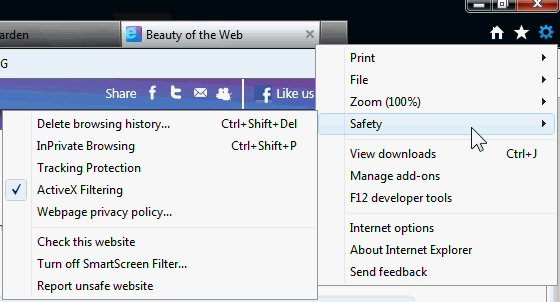
Tracking Protection Lists (TPLs)
Accessible via Tools > Safety
Tracking Protection in IE9 provides control of what data is shared as you navigate from one website to another. This is accomplished by adding Tracking Protection Lists (TPLs) to Internet Explorer. Anyone, and any organization, on the Web can create and publish Tracking Protection Lists.
The default installation of IE9 does not include TPLs. Rather, Microsoft has left the option available to add lists created by others. By installing a TPL, third party content, images, ads, and analytics are blocked for the sites included in the list. Tracking Protection is not on by default. Thus, after turning on Tracking Protection, it will remain on until you turn it off.
Although having TPLs enabled will block third-party content, this feature also includes the ability to include “OK to Call” addresses. This is to ensure you can access these sites even if one of their lists has the site identified as “Do Not Call.”
Before you start adding Tracking Protection Lists, make certain that you understand how they work. I consider Ed Bott's article,
Privacy protection and IE9: who can you trust? a "
must read" if you are going to use TPLs. If you get nothing else from the article, at least note:
"So who can you trust? That question is especially important when you take into account the design of this feature in the IE9 RC. You can install multiple TPLs, and an Allow rule on any list trumps a Block rule on another list. So if you’re the owner of a big network of web properties, and you see a site visitor arrive using IE9, wouldn’t you want to helpfully offer that visitor the option to install a Tracking Protection List that whitelists all your domains? All in the interests of improved user experience, of course." {Emphasis added}
Then see the following quote from further in the article:
"As you can see from the table, TRUSTe’s current TPL represents advertisers, not consumers. TRUSTe’s TPL, unlike any of the others, consists exclusively of Allow rules for entire domains. Remember: Allow rules trump Block rules. So, if your domain is one of the nearly 4000 on the current version of the TRUSTe list, you’ve got a Get Out of Jail free card in IE9 with any user who installs the TRUSTe list."
As Ed pointed out,
"Remember: Allow rules trump Block rules." Be selective about the TPLs you install or you will be counter-acting the tracking you are attempting to block.
The currently available TPLs are available from
Internet Explorer 9 Tracking Protection Lists. From that site, click "Add TPL" for the desired list(s):
Active X Filtering
Accessible via Tools > Safety
ActiveX controls are small programs, or add-ons, that are used to provide multimedia effects, animation, collecting data, and other interactive features on web sites. Some websites require you to install ActiveX controls to see the site or perform certain tasks on it.
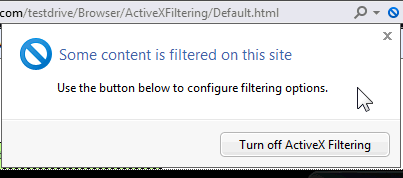
With Active X filtering turned on, you can choose which websites are allowed to run ActiveX controls. If you visit a site that has not been approved, the browser will not prompts to install or enable them. Instead, when you reach a site with Active X being filtered, as identified by the circle with a line through it, click the indicator and select the option to Turn off Active X filtering.
Conversely, if you end up at a site with a lot of flash, rotating images, use Active X filtering to reverse the process:
SmartScreen Filter
Accessible via Tools > Safety
The features of the SmartScreen
® continue to include Anti-Phishing, Application Reputation and Malvertising Protection. With additional information being collected, the features of Application Reputation have been improved.
Application Reputation:
With Application Reputation, the SmartScreen Filter in IE9 is collecting additional information than it did in IE8. The most significant change is that it will send information about the downloaded program, including a file identifier (a “hash”), results from installed antivirus tools, and the program’s digital certificate information.
The check of the file identifier by SmartScreen download reputation will result in IE9 removing warnings for commonly downloaded programs. As illustrated below, warnings will be provided in the download manager for programs that are higher risk. Conversely, there will not be a warning for a well known program.
(Click image to see full-size)
Anti-Phishing and Malvertising Protection:
Most people are familiar with the term "phishing", generally in the form of an e-mail that appears to be from a legitimate site (bank, credit card company, or online merchant). Instead of being linked to the legitimate website, the links in the e‑mail message are directed to a fraudulent website where personal information, such as an account number or password is requested. This information is then typically used for identity theft.
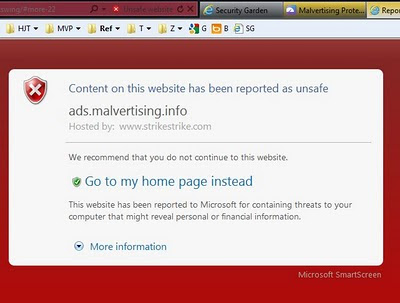
The term malvertising was derived from "malicious advertising". The advertisement could be in the form of a Flash-based ad banner or malicious content in frames that presents fake alerts (such as fake/rogue anti-virus warnings that your computer is infected). Although the actual site being visited is safe, the malicious advertisement that is rotated in by an ad service is not.
With SmartScreen activated in IE9, in the event you click a link in an e-mail that goes to a known phishing site or attempt to go to a website where a malicious advertisement has been reported as unsafe, IE9 will block the ad and provide a warning that the website is hosting malicious content. Although not fully appreciated in the partial screen copy from the
demo sample provided by Microsoft, the complete background of page is a bright red.
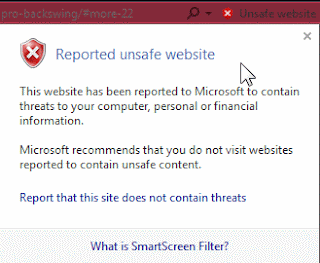
Along with the warning, the address bar includes the security warning symbol next to the wording "Unsafe website". Clicking the symbol provides the following additional information:
Suggested Sites
Accessible via Tools > File
If you use Suggested Sites, be aware that
Internet Explorer 9 is collecting some additional data on images and videos that are included on the sites visited (including the URLs of the images or videos). The purpose of the additional information is to help determine which images and videos are popular and improve the Suggested Sites recommendations.
Additional details are available in the
Internet Explorer 9 privacy statement.
User input by the many Beta testers had an influence on the Release Candidate. The changes that were made to the IE9 Release Candidate based on Beta feedback are discussed at the IEBlog in
User Experiences – Listen, Learn, Refine.

If you are anxious to upgrade to the IE9 Release Candidate, be sure you have the required updates installed.
Required Updates for Windows Vista
- KB971512: Windows Graphics, Imaging, and XPS Library Updates
- KB2117917: Beta Platform Update Supplement
Required Updates for Windows 7
- KB2028551: Resolves Issues Printing XPS Containing Visual Brushes
- KB2028560: Performance Improvements for the Graphics Platform
- KB2120976: Addresses Streaming Issues with Media Foundation
Microsoft References:
Recommended Articles by Ed Bott:
Clubhouse Tags:
Clubhouse,
Microsoft,
Internet Explorer,
IE9,
Windows Vista,
Windows 7,
Information,
Windows
Remember - "A day without laughter is a day wasted."
May the wind sing to you and the sun rise in your heart...


